
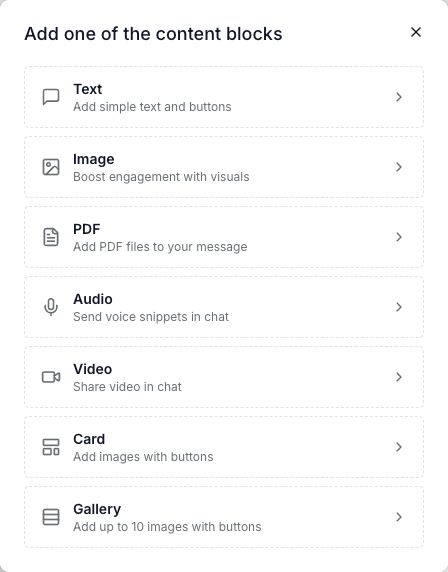
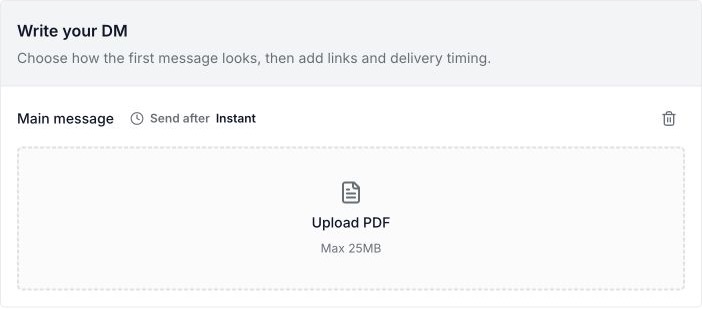
Under Write your DM, choose Add message, then Image or PDF. Upload the file and save your automation.
These message types are included in Professional. Check current plans if the block is locked.
Prepare the file
| Message type | File formats | Upload limit |
|---|---|---|
| Image | JPG, JPEG, PNG, GIF | 8MB |
| 25MB |
Use a file with text that is easy to read on a phone. Check that it contains only the details you want recipients to see.
If you want to send a web page or a hosted guide instead, add a link button to a Text message.
Add the message
- Open Instagram → Automations and choose the rule to edit.
- Find Write your DM. For a new main message, choose Add message.
- Choose Image or PDF from the message picker.
- Choose Upload image or Upload PDF, then select your file.
- Wait for the upload to finish. Check the file preview or file name.
- Review your post, keyword, and any opening steps.
- Choose Save changes. Turn on Go live when the rule is ready.
The steps above start with an empty Main message. For a new rule, follow comment reply setup and choose Image or PDF at the message step. If an existing rule already has a message, check its current content before replacing it.
Test the received file
- Trigger the rule from another Instagram account.
- Check the inbox and message requests.
- Open the received image or PDF on a phone.
- Check the pages, text, and file you promised.
- If you offer a download, check that the person can save it.
A file in the editor shows that it uploaded. Test the received DM to check delivery.
If the file will not send
- File is too large: reduce it below the limit shown for that message type.
- Wrong format: export it as one of the formats listed above.
- Upload failed: check your connection and retry. Wait for the upload to finish before saving.
- Only an opening DM arrived: finish its quick reply or email step before expecting the main file.
- No DM arrived: use the reply checks.
For advice on the offer, caption, and guide access, read the free-guide campaign post.