
Choose Story replies when someone replies to your Story. Choose Story mentions when someone tags your account in their own Story. Each needs its own automation, or saved reply rule.
You need a connected Instagram Business or Creator account and room in your active rules and run allowance.
Choose the right Story trigger
- Story replies: someone sends a reply to a Story you shared. For example, they reply SIZE to ask for a size chart.
- Story mentions: someone adds your @username to their own Story. You might send a short thank-you message.
A Story view alone does not start either reply.
Set up a Story reply
- Open Instagram → Automations.
- Choose New automation → Standard Builder.
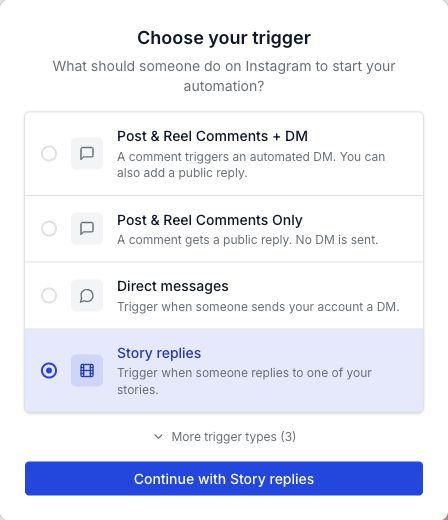
- Select Story replies, then Continue with Story replies.
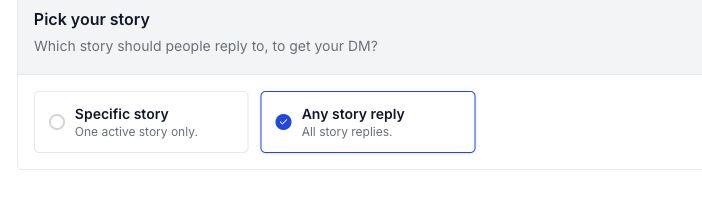
Under Pick your story, choose:
- Specific story for one active Story. Select the Story that offers your link.
- Any story reply when the same reply should apply across your Stories.
For a link about one product, use Specific story. This helps avoid sending that product’s link after a reply to a different Story.
Choose which replies get your message
For a Story that says “Reply SIZE for the size chart”:
- Under Set your keyword, turn Any keyword off.
- Type SIZE in Keywords and press Enter.
- Check that SIZE appears as an added keyword.
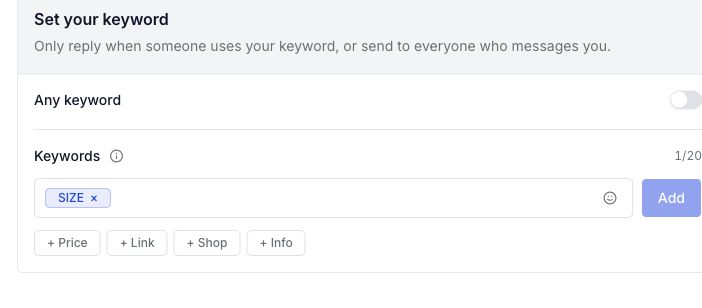
SIZE and size match the same rule. The word can be part of a longer reply, such as “size chart please.”
Leave Any keyword on only if you want the rule to respond without checking for a word. A size-chart reply would not make sense after every Story message.
Write and save the reply
- Under Write your DM, choose Add message → Text.
- Write the message you promised. A DM is a private message.
- Choose Add link to add your size-chart button. Follow the link-button steps for its label and URL.
- For a simple link reply, leave the extra opening, follow, and email steps off.
- Turn on Go live, then choose Save changes. Check that the saved rule shows Live.
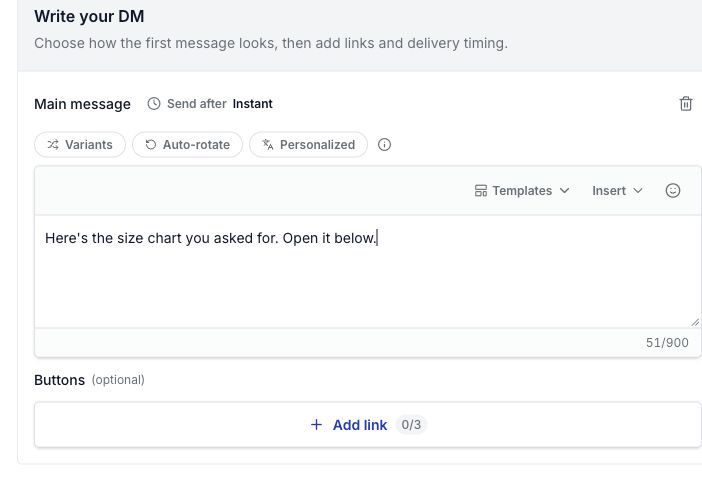
This is a sample reply in an unsaved editor:
Here’s the size chart you asked for. Open it below.
Reply to a Story mention instead
- Start another New automation → Standard Builder.
- In the trigger picker, choose More trigger types → Story mentions.
- Choose Continue with Story mentions.
- Add your Text message under Write your DM.
- Turn on Go live, save, and check the rule’s status.
Story mentions do not have a keyword filter. Use a reply that makes sense whenever someone tags you, such as:
Thanks for sharing us in your Story!
You cannot make this trigger depend on SIZE appearing in the Story text. Use Story replies for that kind of request.
Test before sharing the offer
Use another Instagram account:
- Reply SIZE to the Story covered by your rule.
- Check that the expected DM arrives and its link opens on a phone.
- Reply with an unrelated message. With keyword matching on, it should not start the size-chart reply.
- For Specific story, also check a different Story. It should not use that rule.
- Test a mention rule separately by tagging the connected account in a new Story.
The builder preview shows your setup. Check the real received message too.
If the reply does not arrive
- Wrong interaction: a Story reply and a tag in someone else’s Story need different triggers.
- Old Story: Specific story targets one active Story. Check the chosen Story before each new offer.
- Wrong word: check the saved keywords, or whether Any keyword is on.
- Rule will not go live: another active rule may already cover the same target. Edit or pause that rule before switching.
- Still missing: check the connected account, Live status, and run allowance. If an earlier reply is waiting for a button tap or email, finish that step before testing a new request.
For a message sent straight to your inbox, use DM keyword replies.