
Choose Direct messages in WinkSend, then add the word that should start your reply. For example, someone sends PRICE to your Instagram inbox and gets your price-list link.
You need a connected Instagram Business or Creator account and room in your active rules and run allowance.
Choose Direct messages
- Open Instagram → Automations.
- Choose New automation → Standard Builder.
- Select Direct messages, then Continue with Direct messages.
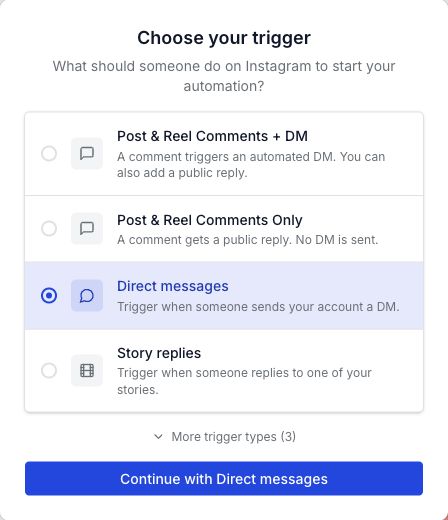
Test this trigger with a new message sent straight to your profile’s inbox. For replies to a Story, use the Story reply guide. Post & Reel DMs is also a separate trigger.
Add the word you asked people to send
For a price-list campaign:
- Under Set your keyword, turn Any keyword off.
- Type PRICE in Keywords and press Enter.
- Check that PRICE appears as an added keyword.
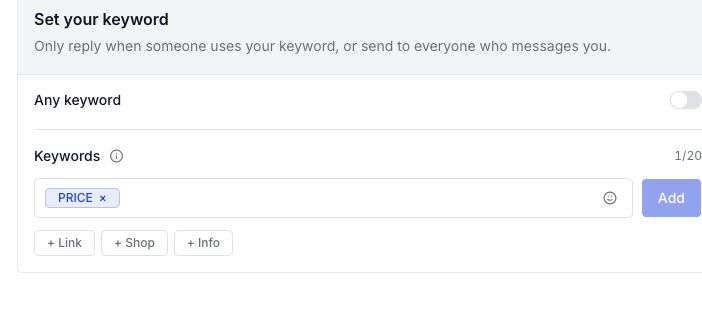
Leave Any keyword off for this campaign. Turning it on removes the word check, so an unrelated incoming message could get the price-list reply.
How matching works
- PRICE, Price, and price match the same rule.
- “Price please” also matches. The keyword can appear inside a longer message.
- Short words can match inside other words. For example, AI also matches “email.”
- Several keywords in one rule use the same reply. They do not each get a different product link.
Choose a clear word for one offer. Avoid adding PRICE, GUIDE, and BOOK together if each needs a different reply.
Add your reply and link
- Under Write your DM, choose Add message → Text.
- Write a short reply that matches your offer.
- Choose Add link, name the button, and paste your full price-list URL.
- Save the button. See Add a link button for those fields.
This is a sample reply in an unsaved editor:
Here’s the price list you asked for. Open it below.
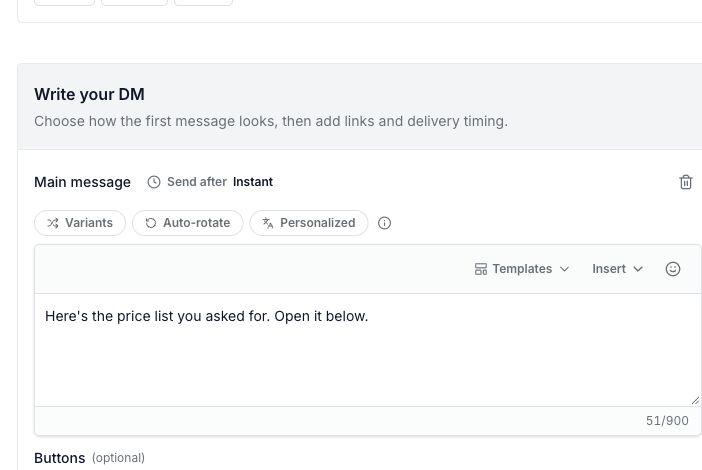
Use a label such as View prices for the button. Make sure the page shows the collection you promised.
For a simple link reply, leave the extra opening, follow, and email steps off. If you need to collect an email first, follow the email setup guide and check its plan requirements.
Save and test the rule
Turn on Go live, choose Save changes, and check that the saved rule shows Live.
From another Instagram account:
- Open the connected account’s profile and send a new DM containing PRICE.
- Check that the reply arrives.
- Open the button on a phone and check the prices.
- Send “price please” to check matching inside a longer message.
- Send an unrelated message, such as “hello.” It should not start this keyword reply.
A preview is not a delivery test. Check the message received inside Instagram before telling people to send the word.
Fix a missing or wrong reply
- Replies to unrelated messages: turn Any keyword off. Remove words that also match inside common messages.
- No reply: check that the word was added, the rule is Live, and the message went to the connected account.
- Already-active warning: only one Direct messages rule can be active for an Instagram account at a time. Edit the existing rule, or pause it before activating its replacement.
- A previous step is waiting: finish any open button, follow, or email step before testing another request.
- Link is wrong: edit the button and save the automation again. Check runs and usage if the account has reached its allowance.
For words left under a post, use comment reply setup. For words sent as Story replies, use Story reply setup.