Choose Connect Instagram, finish the sign-in and permission steps, then check for Connected in WinkSend.
Before you start
- Use an Instagram Business or Creator account. These are Instagram’s two Professional account types. Personal accounts cannot connect.
- Make sure you can sign in to the Instagram account you want to use.
- Log in to WinkSend. If you are new, create your account first.
Using a Personal account? Follow Instagram’s guide to switching to a Professional account, then come back here.
Connect your account
- Open the connection screen. During first-time setup, look for Connect your Instagram. If you skipped that step, open Channels → Instagram in the app menu.
- Choose Connect Instagram. WinkSend opens Instagram’s sign-in flow.
- Sign in to the right Instagram account. Check the username before you continue, especially if you use more than one account.
- Review the requested access. Finish Instagram’s permission steps so WinkSend can use the reply features. The screen wording may vary.
- Return to WinkSend. After the connection finishes, open Channels → Instagram to check the account.
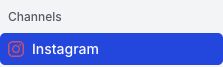
Already see an account marked Connected? Check its username. You can move to the next step if it is the account you want.
Check the connection
On Channels → Instagram, check two things:
- The username belongs to the account you meant to connect.
- The account shows Connected.

The screenshot shows our founder’s account. You should see your own name and username.
A connected account is the first step. You still need to make and test a reply before people can receive it.
If it did not work
- Your account is Personal
- Switch to a Business or Creator account in Instagram. Then try connecting again.
- You closed the sign-in or permission screen
- Go back to WinkSend and choose Connect Instagram again. Finish the sign-in steps.
- The button is missing or disabled
- Ask the workspace owner to check your access. If the app shows an error, include that message when you contact support.
- The account needs new permissions
- Open Channels → Instagram and choose Refresh Permissions. Finish the sign-in steps and check the account again.
- The wrong account appears
- Check which Instagram account you used during sign-in. Contact support before removing it: Remove permanently deletes that account’s WinkSend automation history and settings.

Still stuck? Contact WinkSend support. Send the error text and say which step stopped.
Make your first reply
Start with one post and one comment word. For example, send your guide link when someone comments GUIDE.
Test from another Instagram account. Check the inbox and message requests, then open the link.